



*Must Read Before Customizing your Portfolio*

RESTRICTIONS:
-You are permitted 25 (Products) Appraisal Pages ONLY. If you need additional appraisal pages, you can create another portfolio, or Contact us.
-You are NOT Permitted to use the ‘Sale Price ($)’ Feature unless your Parcel has been Verified.
ADD PORTFOLIO PHOTO & ‘ABOUT’ INFO
From the ‘SETTINGS’ tab (on your Dashboard) – You can quickly setup your Custom Portfolio by simply adding a Portfolio Photo (Store Logo) #1, and your Portfolios ‘About’ information (Shop Description) #2.
▪ If you do Not want your Email Displayed (#3) on your Portfolio, (or decide you want to remove your email from your portfolio at anytime) you can select to HIDE your email (at bottom of page – #3), and alternatively add any Contact information (for potential Offers) to your ‘About’ information, which will still be public, but a bit more discrete.
▪ If you do Not want your ‘About’ information displayed on your Portfolio, you can select to HIDE your About information (at bottom of page – #4).
▪ You will see other options for customization available, but you will Only need to customize the sections mentioned above. The rest should remain unchanged.
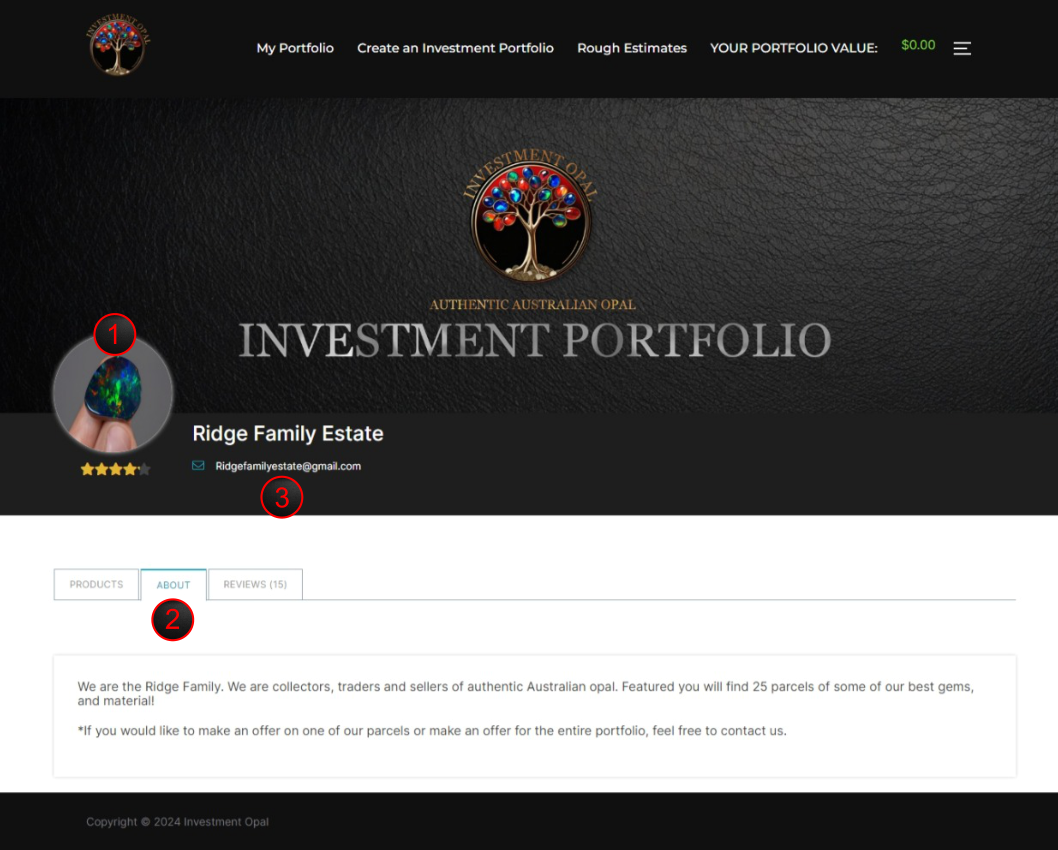
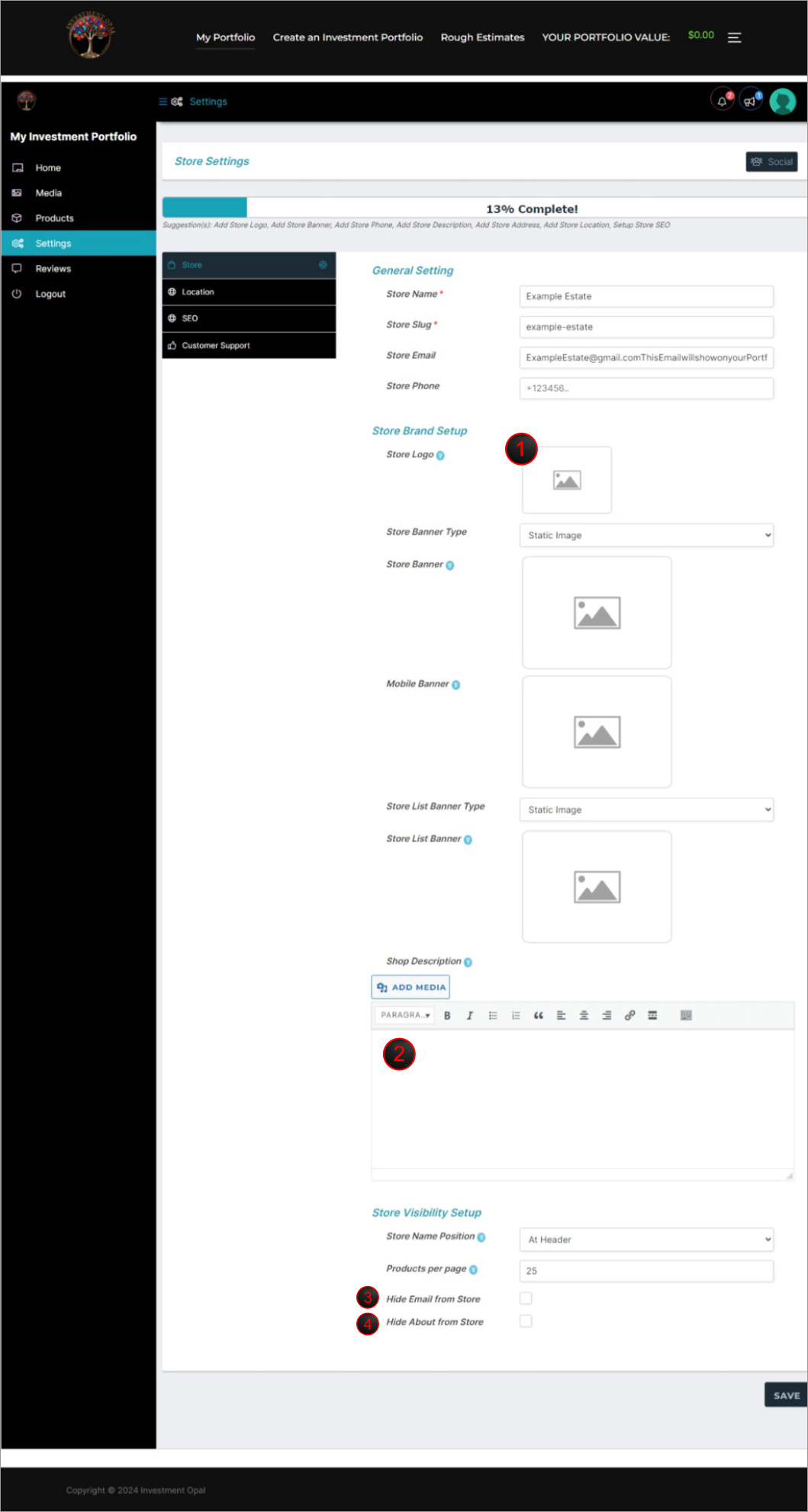
#1 – Visual of Portfolio Photo (Store Logo) / Add Photos
#2 – Visual of your ‘About’ Portfolio information / Add About info
#3 – Visual of your Displayed Email / HIDE email section
#4 – HIDE your ‘About’ Portfolio information tab
*TIP – When adding your Portfolios ‘About’ information (in the Shop Description section) you can include instructions on how to submit offers, additional emails, social links and/or alternative contact methods etc.
HOW TO ADD A PARCEL
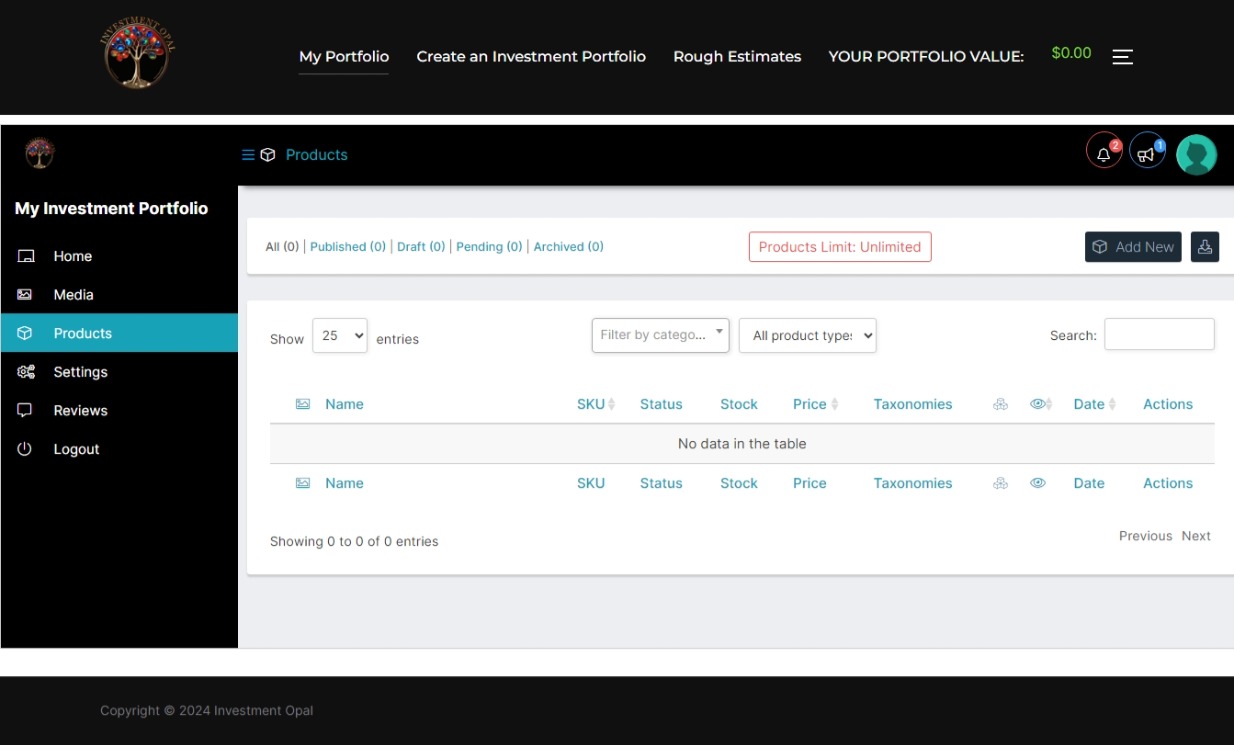
First, navigate to the ‘PRODUCTS’ tab and click the Square CUBE ‘Add New’. (For mobile devices, it may show as only a Square /CUBE)
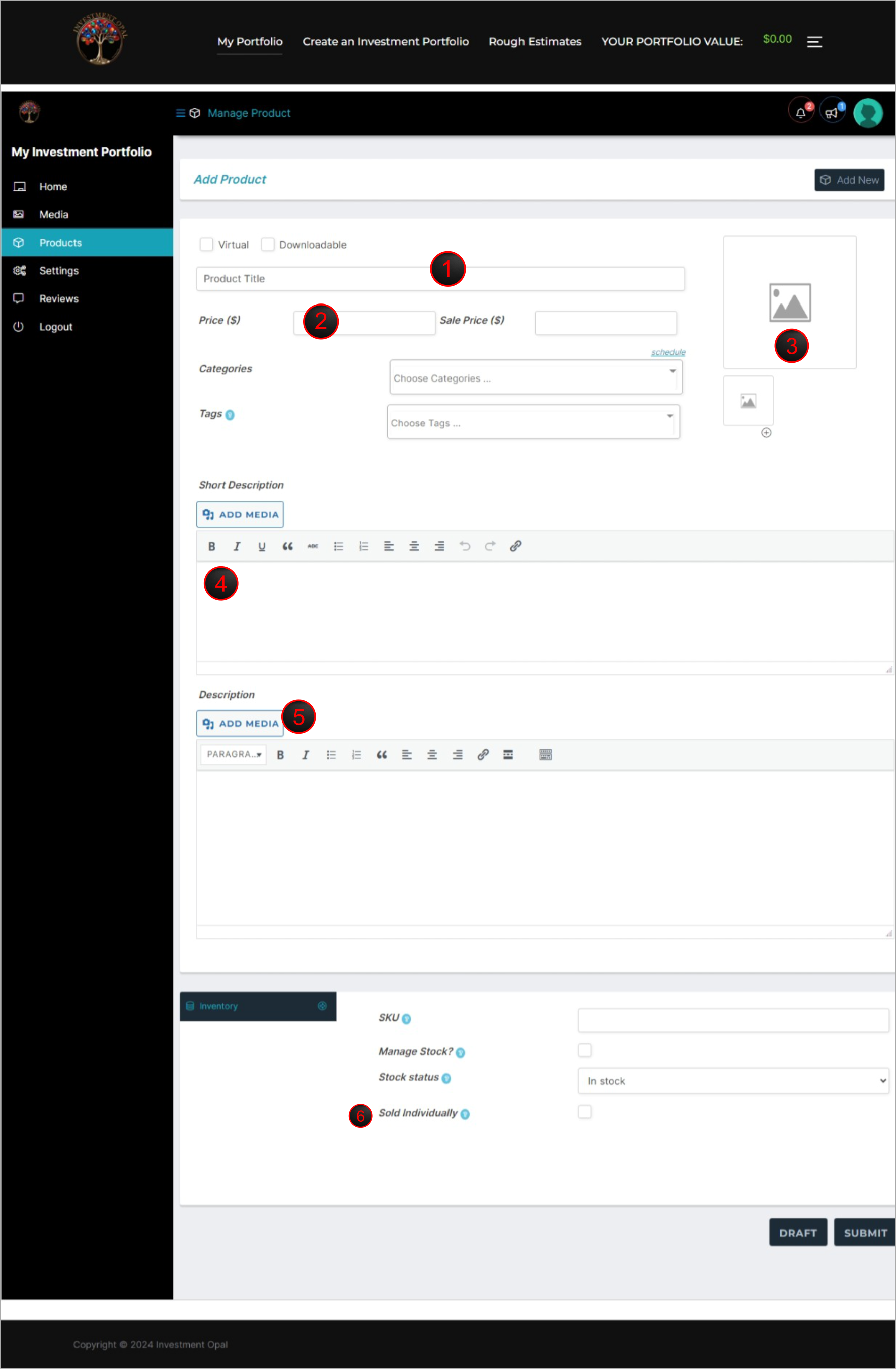
ADD A NEW PARCEL IN 6 STEPS
#1 – Add Product/Parcel Title
#2 – Add Price / Set Displayed Value (Optional)
#3 – Add Photos
#4 – Add Parcel Description
#5 – Add Video
#6 – Check/Select ‘Sold Individually’
You will see other options for customization available, but you will Only need to customize the sections mentioned above. The rest should remain unchanged.
*IMPORTANT TIPS FOR ADDING PARCELS*
#1 – Add Title for Product/Parcel – *TIP* – To create a Uniform presentation; Try to create a short and simple format for all of your parcel Titles, that utilize around the same number of Characters. You will be able to add a complete description (in the Short Description section), so try to include Only the important basic info in your parcel Titles. For Example: In the ‘Product Title’ you may only want to include; The carat weight of the Parcel (7cts), the Location (Lightening Ridge, Mintabie, CP etc.) and the parcel Type (Rough, Cut/Polished, Rub etc).
#2 – Add Price / Set Displayed Value – *TIP* – We recommend Not setting any price (Leaving the price field Blank), IF you are interested in receiving Estimates in our Online Appraisal Network. By leaving the price field blank, it indicates that your Parcel is Available for Estimates/Appraisals.
#3 – Add Photos – *TIP* – To maintain Uniformity, we Suggest uploading a total of (4) photos, or only (1) photo (same size,dimensions).
#4 – Add Parcel Description *TIP* – We Suggest Including a Unique Identification # for each of your parcels at the end of All of your Descriptions. This unique ID# should corresponds with your labeling system for your Opal collection. (Example: Parcel ID-Ridge#123)
*Add Parcel Description *OUR POLICY* – Owners are Required to list any inclusions, flaws, cracks etc. in their piece(s), that are visible in person with the naked eye, but may not show in photos/video. We will Not tolerate any forms of deception that may tarnish the integrity of our Investment Portfolios.
#5- Add Video *TIP* – You can upload videos around 1 minute long (up to 32 MB). To upload longer videos (larger files) visit the ‘Announcements’ section on your Dashboard, for resources to quickly compress large videos into smaller files that you can upload. (You can find the ‘Announcements Icon’ on Top, Right corner off your Dashboard)
*TIPS for ONLINE APPRAISAL NETWORK*
*TIP* – After you have added a new parcel; Go to your parcels Appraisal Page and comment/post the 1st Estimate with a general idea of the value for the parcel, or a value range. Otherwise, you may receive Lower appraisals simply because evaluators do not have a point of reference. You will be able to delete your estimate at any time, so we would suggest posting an estimated value for your parcel (Agree/Disagree), or your estimated value range for the parcel. This may help you to get more valid estimates.
*HOW TO ACCESS YOUR OPAL INVESTMENT PORTFOLIO*
You can Access your Investment Portfolio by simply clicking ‘My Investment Portfolio‘ at the Top of your Dashboard (to the left of your Notification icons).
YOU CAN ACCESS THIS ‘HOW TO SETUP PORTFOLIO / ADD NEW PARCELS’ PAGE AT ANYTIME FROM YOUR ‘ANNOUNCEMENTS’ SECTION OF YOUR DASHBOARD (UPPER RIGHT CORNER OF DASHBOARD).

